
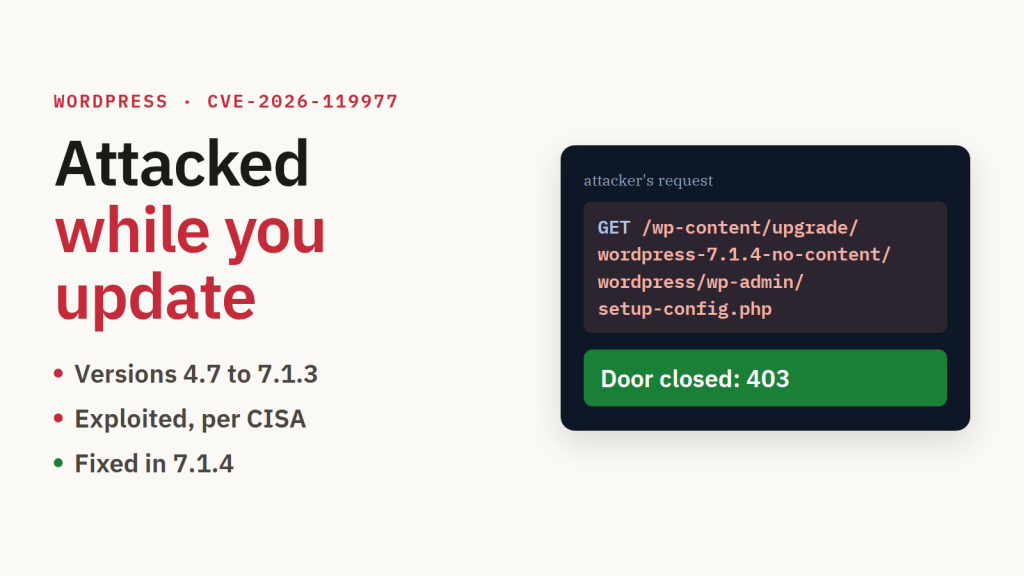
Short version: WordPress 4.7 through 7.1.3 has a flaw (CVE-2026-119977) that lets someone with no account and no password run code on your server during the minutes WordPress is updating itself. The US Cybersecurity and Infrastructure Security Agency (CISA) confirmed it as exploited on November 3, 2026. It is fixed in 7.1.4 and 7.1.5, with patches for older branches too. The awkward part is that the fix arrives through the same update system, and that system can fail without you noticing. Below is how to check your site really updated, an nginx or Apache rule that closes the door even if something fails, and what to look at if you suspect you were already attacked.
What this flaw is
When WordPress updates to a full new version, it downloads a ZIP with the new release, unpacks it into a temporary folder inside wp-content/upgrade/, and copies the files into place from there. That folder sits inside the public website, and before 7.1.4 it had a predictable name: the name of the package being installed. A site on 7.1.3 that updates unpacks, for example, wordpress-7.1.4-no-content.
According to the official description in the US vulnerability database, that is exactly the problem: "predictable, web-accessible staging paths used during full-package core upgrades", which make it possible for unauthenticated attackers "to execute code on the server during the upgrade window".
In other words: while the update runs, there is a complete, unconfigured copy of WordPress at an address an attacker can guess. If they get there in time, they can use it.
The key facts:
| Item | Detail |
|---|---|
| ID | CVE-2026-119977 |
| Affected versions | 4.7 through 7.1.3 |
| Fixed in | 7.1.4 (October 28, 2026) and later |
| Severity | 8.1 out of 10 per Wordfence (high) |
| Exploitation | Confirmed by CISA on November 3, 2026 |
The score is 8.1 and not higher because the attack is hard: the timing of the update has to be just right. Even so, CISA has already added it to its catalog of exploited vulnerabilities, with a November 6 deadline for federal agencies to fix it.
What the patch changed
The 7.1.4 code is public, so you can see exactly what it fixes. There are three changes in the updater:
- The temporary folder's name can no longer be guessed. It now ends with 16 random characters.
- The
upgrade/folder can no longer be listed. WordPress leaves an emptyindex.phpinside, as it already did forwp-contentand the plugin and theme folders, so a misconfigured server will not show its contents. - It never copies a
wp-config.phpfrom the temporary folder. The code comment explains it: it is a file that "could have been written to the working directory". In other words, one of the things an attacker could do was drop their own configuration file there and have WordPress copy it over yours.
The 7.1.4 release notes describe it as "a weakness in the WordPress upgrade process which can lead to remote code execution during the upgrade window", and include a dozen more security fixes. 7.1.5, from November 18, brings several more, including two SQL injections.
Older branches got the patch too. I checked in the published code that, for example, 7.0.8, 6.9.11, 6.8.12 and 4.7.39 include it. Still, the sensible move is to go to 7.1.5.
The real problem: an update that fails silently
Here is the uncomfortable part. Most WordPress sites update themselves for minor versions, and 7.1.4 is one. Plenty of people assumed they were protected. But if the automatic update fails, WordPress keeps working normally, the site loads as usual, and nobody notices.
The most common cause is one I have run into more than once: WordPress files that do not belong to the web server user. It happens when someone copies files, restores a backup or runs WP-CLI as root. Those files end up owned by root, WordPress (which runs as www-data or similar) cannot overwrite them, and the update stops. A single file that ships in the new package is enough to keep the process from finishing.
And there is a worse detail: this vulnerability is triggered during the update. If WordPress retries an update that failed, each attempt unpacks the package into wp-content/upgrade/ again and reopens that window.
How to check your WordPress really updated
From the dashboard. Go to Dashboard > Updates and check the version. It has to be 7.1.4 or later. Then go to Tools > Site Health. If automatic updates are failing, you will see "Background updates may not be working properly", and if the cause is permissions, a list under "Some files are not writable by WordPress".
From the terminal, if you have SSH and WP-CLI. Replace the path with your site's and www-data with your web server user:
cd /var/www/your-site
sudo -u www-data wp core version
sudo -u www-data wp core verify-checksums
The first command tells you the real version. The second compares every WordPress file with the official ones and warns if any were modified.
To find files WordPress cannot touch:
cd /var/www/your-site
find . -not -user www-data -not -name wp-config.php | head
If anything shows up, those files can block the next update. The fix is to give them back to the web server user. Leave out wp-config.php, which on many servers belongs to root on purpose so nobody can change it from WordPress:
find . -not -user www-data -not -name wp-config.php -exec chown www-data:www-data {} +
Then update:
sudo -u www-data wp core update
sudo -u www-data wp core update-db
On shared hosting with no terminal, the WordPress dashboard is what you have. If Site Health lists files that are not writable, your provider has to fix the permissions.
Close the door even if something fails
WordPress handles the wp-content/upgrade/ folder from the server itself, never over the web. There is no reason for a visitor to request anything there, so it can be blocked. It is a second layer: if an update fails again one day, or a similar flaw shows up, the folder cannot be used from outside.
In nginx, inside your site's server block, before the general PHP rule (location ~ \.php$), because nginx applies the first matching rule:
location ~* ^/wp-content/(upgrade|upgrade-temp-backup)/ {
    deny all;
}
Test the config and reload:
sudo nginx -t && sudo systemctl reload nginx
curl -s -o /dev/null -w '%{http_code}\n' https://your-site.com/wp-content/upgrade/
It should return 403.
In Apache (and on hosting that uses .htaccess), add this at the top of the .htaccess file in the WordPress root, before the # BEGIN WordPress block:
<IfModule mod_rewrite.c>
RewriteEngine On
RewriteRule ^wp-content/upgrade(-temp-backup)?/ - [F,L]
</IfModule>
Do not put it inside wp-content/upgrade/: WordPress empties that folder on every update and would wipe the rule.
I tested both rules before publishing them, nginx on a production server and Apache 2.4 in a container: the update paths return 403 and the rest of the site, including images and posts, keeps working. If your host uses LiteSpeed, which reads .htaccess, the Apache rule should work, but I have not tested it there.
How to tell if you were already attacked
If your site ran a vulnerable version after October 28, it is worth checking. This is not a full forensic audit, but it covers the basics.
1. Look for requests to the update folders in the web server log. On nginx with the default Ubuntu or Debian setup:
sudo zgrep -h "/wp-content/upgrade" /var/log/nginx/access.log* | awk '{print $1, $4, $7, $9}'
On Apache, change the path to /var/log/apache2/access.log*. You will see bots probing: the logs of an ordinary WordPress site already show requests to /wp-content/upgrade/ from several addresses, day after day. What matters is whether any request to a .php file in that folder returned 200. A 404 or 403 means it found nothing.
2. Check the WordPress files with wp core verify-checksums, as above, and the plugins with:
sudo -u www-data wp plugin verify-checksums --all
Plugins that are not in the official WordPress directory cannot be verified this way and will show up as "skipped". That is normal.
3. See whether a new administrator appeared:
sudo -u www-data wp user list --role=administrator
4. Look for PHP files where they should not be. Outside plugins, themes and languages, there should be almost no PHP in wp-content:
find wp-content -name "*.php" -not -path "*/plugins/*" -not -path "*/themes/*" -not -path "*/languages/*" -not -path "*/mu-plugins/*"
It is normal to see a few empty index.php files, which WordPress and many plugins leave so the folder cannot be listed. Open them: if one says // Silence is golden. and nothing else, it is legitimate.
5. Check the date on wp-config.php. If it changed without you touching it, that is a bad sign:
ls -la --time-style=full-iso wp-config.php
If any of this looks wrong, updating is not enough: restore from a backup taken before the attack and change every password, including the database ones.
Summary
- Make sure your WordPress is on 7.1.5 (or at least 7.1.4).
- Do not trust the automatic update: check Tools > Site Health or check who owns the files.
- Block
wp-content/upgrade/andwp-content/upgrade-temp-backup/in nginx or.htaccess. - If you ran a vulnerable version, check the logs and the files.
Sources
- NVD: CVE-2026-119977
- CISA: Known Exploited Vulnerabilities catalog
- Wordfence: vulnerability advisory
- WordPress 7.1.4 and WordPress 7.1.5
- Updater code in wordpress-develop, versions 7.1.3 and 7.1.4:
class-wp-upgrader.phpandupdate-core.php