
If you landed here from a search engine: the fix is one line and it’s at the bottom. The reasoning in between is the part worth reading, because this class of failure is going to keep happening.
The symptom
The story almost always starts in the same place: the console’s App Center. You click install on UniFi Access, the interface works away for a while, and the application never appears. You try again and the same thing happens. No error message, no code to search for, nothing.
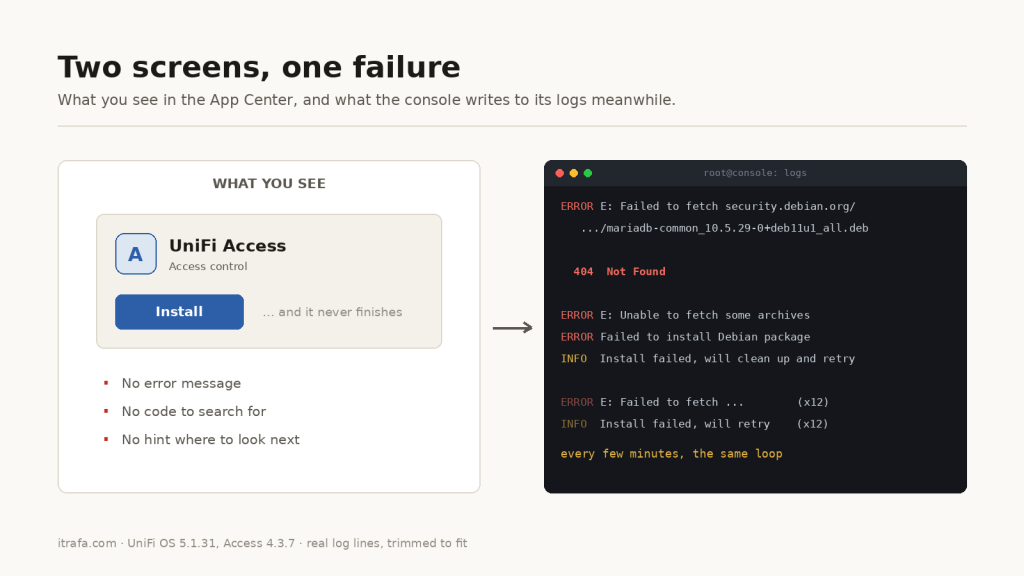
If that’s what you are looking at, here is the part that matters: there is nothing you can do from the UI. Not retrying, not rebooting the console, not waiting for the next release. The failure and the fix live one layer down, and you get there over SSH.
Getting to the terminal
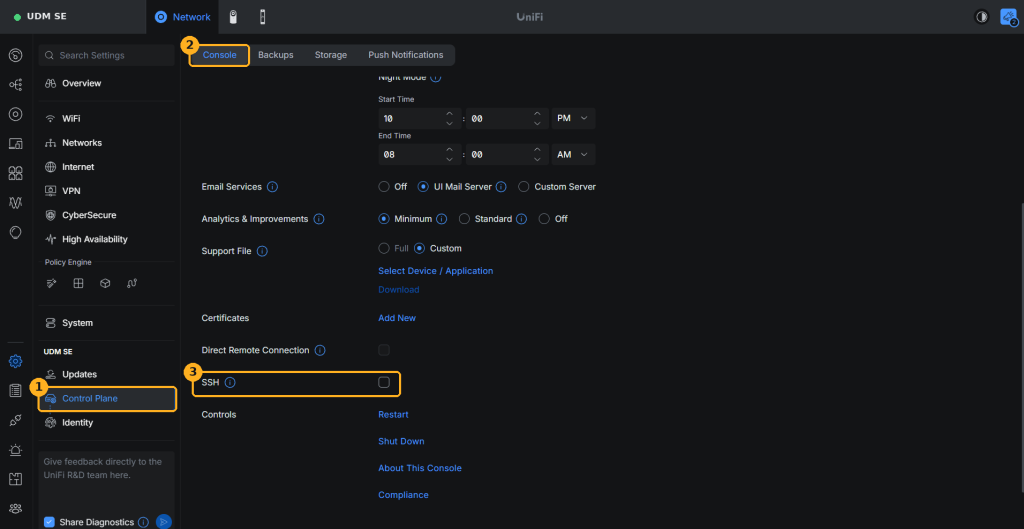
SSH ships disabled. On UniFi OS 5.1.31 the switch lives in the settings: in the side menu, under your console’s name, open Control Plane; stay on the Console tab and scroll almost to the bottom, where SSH appears. Enable it and set a password. One thing to watch: the password is the one you set there, not your Ubiquiti account password. And the user is always root.
ssh [email protected] # your console's LAN address
Everything that follows in this article happens inside that session, as root. Turn SSH back off when you finish.
Once inside, the logs live under /data/unifi-core/logs/. Rather than guessing which file the failure lands in, grep the whole directory:
grep -hiE \
  'failed to fetch|exit with error|install failed' \
  /data/unifi-core/logs/*.log | tail -25
Application installs are handled by the UOS agent, so uos-agent.log is the likely home, but the directory-wide grep saves you from caring. This is what comes back:
What shows up in the logs:
ERROR E: Failed to fetch
  https://security.debian.org/debian-security/pool/updates/main/m/mariadb-10.5/
  mariadb-common_10.5.29-0%2bdeb11u1_all.deb
  404  Not Found
ERROR E: Unable to fetch some archives, maybe run apt-get update or try with --fix-missing?
ERROR Exit with error: Failed to install Debian package: ExitCode Some(100)
INFO  Install failed, will attempt to clean up state and retry
The retry loop is the tell. The console keeps trying, keeps failing, and never tells anyone. And the fact that the failure repeats at intervals is itself confirmation: you are looking at a stuck install, not a one-off error.
I saw this on UniFi OS 5.1.31 with Access 4.3.7, on both a UDM Pro and a UNVR4. The console model isn’t the variable that matters here.
What doesn’t fix it
Two obvious moves, both wrong, and it’s worth understanding why so you don’t waste an hour on them.
Refreshing the package index
The error message itself suggests apt-get update. It doesn’t help:
From the console:
# apt-get update
Hit:1 https://security.debian.org/debian-security bullseye-security InRelease
Hit:2 https://deb.debian.org/debian bullseye InRelease
Hit:3 https://archive.debian.org/debian bullseye-backports InRelease
Hit:4 https://deb.debian.org/debian bullseye-updates InRelease
Reading package lists... Done
Four Hit lines. The indexes are current. The problem is not a stale index: it’s that the index is accurate about a file that no longer exists:
From the console:
# apt-cache policy mariadb-common
mariadb-common:
  Installed: (none)
  Candidate: 1:10.5.29-0+deb11u1
  Version table:
     1:10.5.29-0+deb11u1 500
        500 https://security.debian.org/debian-security bullseye-security/main arm64
     1:10.5.23-0+deb11u1 500
        500 https://deb.debian.org/debian bullseye/main arm64
The candidate version is real, published, and referenced by a current index. The .deb behind it has been removed from the pool.
Updating the firmware
The second instinct is that this must be fixed in a newer release. It isn’t, because there is no newer release:
From the console:
# grep 'Latest available version' /data/unifi-core/logs/firmware.log | tail -1
... "version":"v5.1.31+5acc35d" ...

# cat /usr/lib/version
UNVR4.al324.v5.1.31.5acc35d.260819.1714
Installed version and latest available version are the same string. There’s nothing to update to.
And the reason the problem exists at all is visible one command later:
From the console:
# grep -i version /etc/os-release
VERSION="11 (bullseye)"
VERSION_CODENAME=bullseye
The current shipping firmware is built on Debian 11, which is oldoldstable today. Ubiquiti has not moved its base, and Debian has moved on.
The root cause, and one detail that changes the fix
The straightforward reading is “bullseye is end of life, the archive is being dismantled, everything will break”. That reading is wrong, and if you act on it you will do more work than necessary.
Look at what actually installed once the blockage cleared. This line is from /var/log/dpkg.log, after the fix:
From /var/log/dpkg.log:
install libmariadb3:arm64 <none> 1:10.5.29-0+deb11u1
libmariadb3 at version 10.5.29, the exact version that 404s for mariadb-common, downloaded without complaint. This is not a mass archival event. It’s a single file missing from the pool while its siblings are intact.
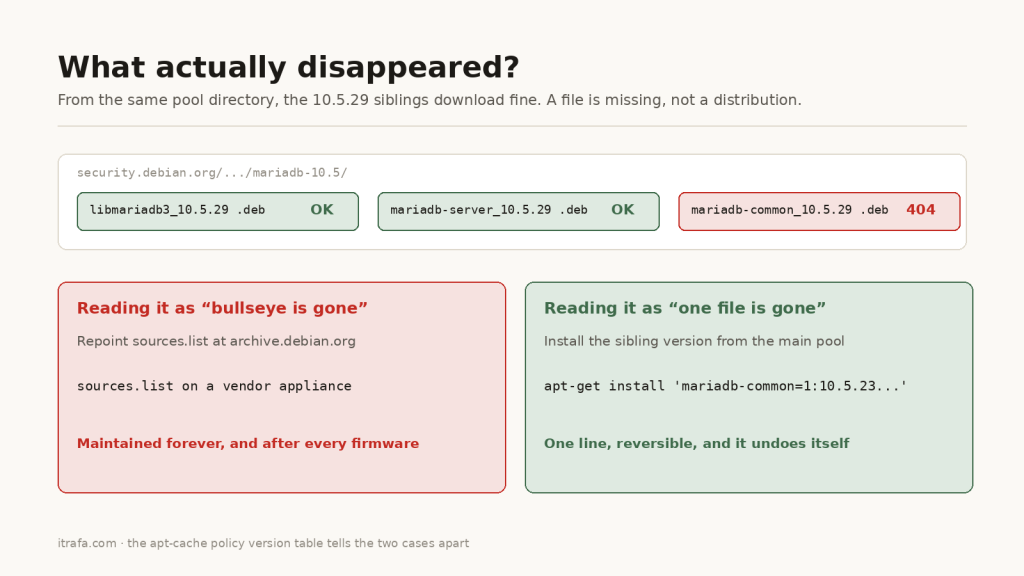
That distinction matters. If bullseye had genuinely been pulled, the fix would be repointing sources.list at archive.debian.org, which is invasive, changes system configuration on a vendor appliance, and has to be revisited after every firmware update. Because it’s one package, the fix can be far smaller.
The version table above already contains the answer. There is an older mariadb-common, version 1:10.5.23-0+deb11u1, sitting in deb.debian.org/debian bullseye/main. Confirm it’s really fetchable before committing to anything:
apt-get install -y --download-only \
  'mariadb-common=1:10.5.23-0+deb11u1'
Real output from this command:
Get:1 https://deb.debian.org/debian bullseye/main arm64
      mariadb-common all 1:10.5.23-0+deb11u1 [37.2 kB]
Fetched 37.2 kB in 0s (362 kB/s)
Download complete and in download only mode
37 kB, no errors.
Checking the blast radius before you install
Before installing a pinned package version on a production appliance, look at what apt intends to do rather than what you hope it will do:
apt-get install -s 'mariadb-common=1:10.5.23-0+deb11u1'
Real output from this command:
The following NEW packages will be installed:
  mariadb-common mysql-common
0 upgraded, 2 newly installed, 0 to remove and 7 not upgraded.
Two new packages. Nothing upgraded, nothing removed. That last part matters more than it looks, because unifi-access declares a dependency on jq, and these consoles ship a vendor-built jq 1.6~ubnt rather than the Debian one. Replacing a manufacturer’s custom build on their own appliance is exactly the kind of change that produces an unexplainable failure three weeks later.
It doesn’t happen here. The dependency is declared without a version constraint:
From the console:
# dpkg-deb -f /data/uos/downloads/unifi-access_*.deb Depends
ulp-go (>= 1.3.26+1924), jq, ms, coturn, unifi-user-assets (>= 0.6.5)
A bare jq is satisfied by whatever is installed, so the vendor build stays. Worth verifying rather than assuming, because apt list --upgradable will happily show jq as upgradable and lead you to the opposite conclusion.
Note also what is not in that dependency list: mariadb-common never appears. It arrives transitively, several levels down. Which means the same class of failure can surface again through a different package, and the diagnostic path above is the reusable part, not the specific version number.
The fix
apt-get install -y 'mariadb-common=1:10.5.23-0+deb11u1'
Then retry the Access installation from the console interface. It proceeds through the rest of the chain without further intervention:
Final package states:
unifi-access          4.3.7+12090   [install ok installed]
unifi-user-assets     0.6.5+753     [install ok installed]
unifi-face-shared-lib 1.1.2+160     [install ok installed]
coturn                4.5.2-3       [install ok installed]
It’s reversible with apt-get remove mariadb-common mysql-common. And I deliberately did not pin it with apt-mark hold: the day Debian publishes a newer mariadb-common, or puts the missing file back, apt upgrades it normally and this workaround dissolves on its own.
Verifying you didn’t break anything
Two checks, because the obvious one produces a false alarm.
dpkg --audit will report several packages missing md5sums control files. On UniFi OS these are Ubiquiti’s own packages (ulp-go, ucs-agent, node20, node24, uid-agent, ai-feature-controller) and they report this before you touch anything. It’s a packaging shortcut on the vendor’s side, not corruption you introduced.
The check that actually tells you something:
dpkg-query -W -f='${Package} ${Status}\n' |
  grep -v 'install ok installed'
Empty output means every package is fully configured. If you scan /var/log/dpkg.log instead, expect to see plenty of half-configured lines. Those are normal transitional states in the dpkg lifecycle, not errors, and filtering for half- will convince you something is wrong when it isn’t.
The part that outlives this specific bug
The interesting question is not how to install one package. It’s why a current, fully updated, vendor supported appliance could not install the vendor’s own application.
The answer is that appliance firmware and the distribution underneath it age on different clocks. Ubiquiti ships 5.1.31 as current. Debian 11 reached oldoldstable some time ago and its pools are being tidied. Nothing is broken from either party’s point of view, and the seam between them is where the failure lives.
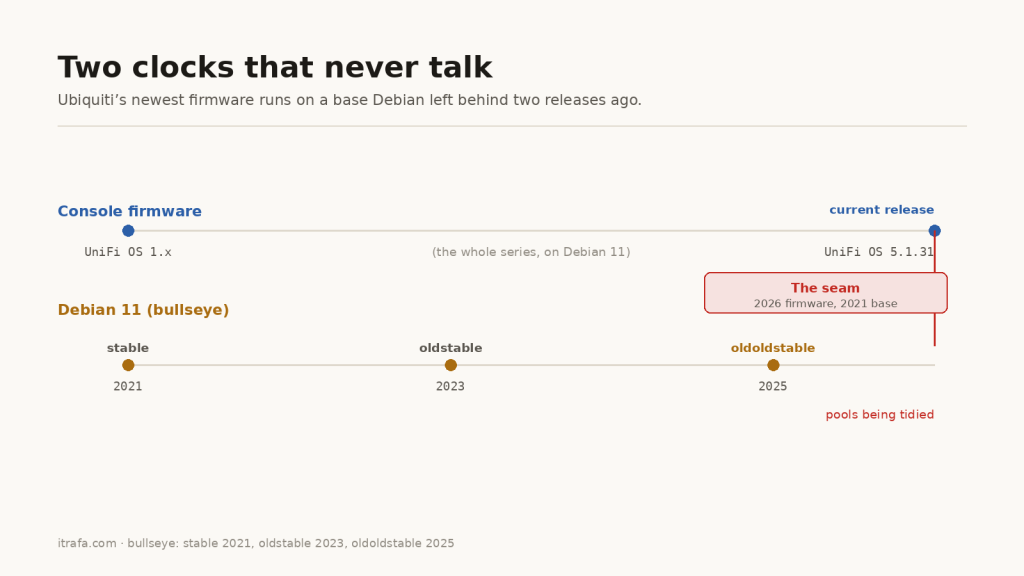
Practically, this means two things when you are supporting appliances rather than servers.
Check the base distribution, not just the firmware version. cat /etc/os-release on a device you are about to depend on takes five seconds and tells you how much runway the vendor has left before this starts happening to you routinely.
And when a vendor installer fails on a dependency, resist the instinct to repoint the repositories. Read the version table first. The difference between “this distribution is gone” and “this one file is gone” is the difference between a system-wide change you will maintain forever and a single pinned package you can remove in one command.
I expect to see more of these, not fewer.
Written up after hitting this on a client console, verified on both a UDM Pro and a UNVR4 running UniFi OS 5.1.31. If you’ve hit the same wall and this saved you an afternoon, that was the point.
More from IT Rafa
- No-subscription repositories on Proxmox VE, another round of wrestling a vendor’s apt sources
- Install Uptime Kuma with Docker, so you hear about failures like this from an alert instead of a ticket
- How to install Docker and Docker Compose on Linux